


Google Is Dropping POP3 in Gmail from January 2026. What Does It Mean for Your Mailbox?
Reading time: 5 minutes
Do you use Gmail as a central place to manage email from your business or personal domain? Get ready for a change. From the start of 2026, Google is ending support for POP3 connections, which will affect how your emails appear in Gmail.
In this article, we'll go over what this change means and how to easily adjust your settings so you can keep using email without complications.
What is Google changing and why?
From January 1, 2026, Google is turning off the option to automatically fetch messages from external mailboxes via the POP3 protocol in the browser version of Gmail. The Gmailify feature will also be affected.
What is POP3? Post Office Protocol 3 is a technology from the last century that lets you download emails from your mail server. Gmail regularly connects to the server, checks for new messages and displays them in your inbox.
Why is Google dropping POP3? The main reason is security. POP3 is an outdated protocol that doesn't support modern authentication mechanisms and encryption at the level Google requires today.
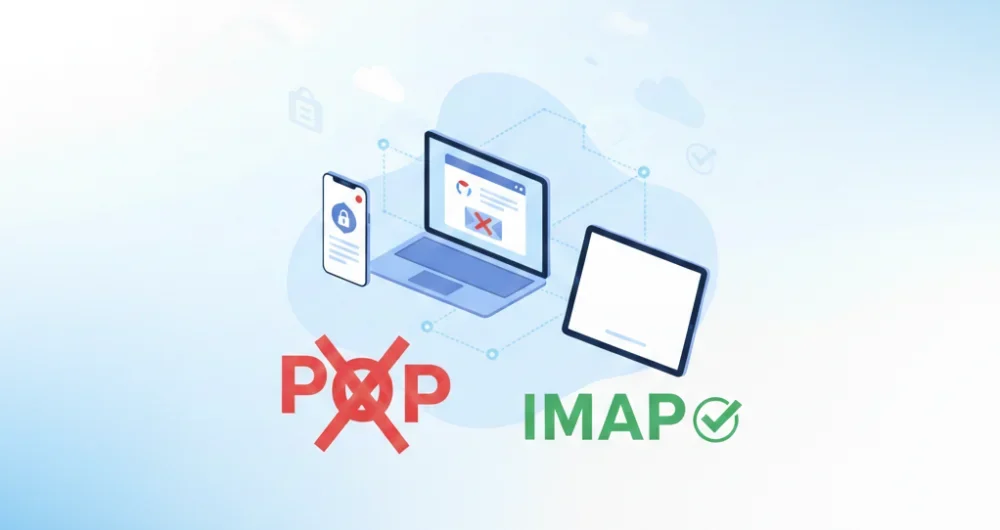
The alternative is the IMAP protocol, which is more modern and secure. However, Google doesn't support connecting external accounts via IMAP in the web version of Gmail. IMAP continues to work in the Gmail mobile app.
Curious about the difference between POP3 and IMAP? IMAP syncs emails between the server and your devices, while POP3 only downloads them and usually deletes them from the server.
Which users are affected?
This change will affect anyone who:
- has a mailbox on their own domain (e.g. kontakt@vasafirma.sk)
- reads this mail in Gmail through a web browser
- has “check mail from other accounts” enabled using the POP3 protocol
If this applies to you, Gmail will stop downloading new messages from your external mailbox starting in the New Year.
How do I find out whether I use POP3?
How to check:
- Open Gmail in your browser (mail.google.com)
- Click the gear icon in the top right corner
- Select “See all settings”
- Go to the “Accounts and Import” tab
- Look for the “Check mail from other accounts (using POP3)” section
If you see an email address in this section, you are using POP3 to import messages. Also check the “Forwarding and POP/IMAP” tab, which shows the POP download status.
What are your options?
You have several ways to set up access to your email after POP3 is turned off:
1. Use your provider's webmail
Every hosting provider offers a web interface for reading mail. Logging in is usually just as easy as in Gmail.
2. Set up automatic forwarding
Want to keep receiving all your emails in Gmail? Set up email forwarding directly on your provider's server. Every new message will be automatically forwarded to Gmail.
Pro: Simplicity Con: The original mailbox will fill up unless you set up automatic deletion
3. The Gmail mobile app with IMAP
The Gmail app for Android and iOS still supports connecting external accounts via IMAP. Your business mailbox will keep working unchanged.
4. An email client (Outlook, Thunderbird, Apple Mail)
Classic desktop or mobile email programs support both IMAP and POP3. Just add your mailbox and you'll have access to all your messages.
Recommended clients:
- Microsoft Outlook (Windows, macOS, iOS, Android)
- Mozilla Thunderbird (Windows, macOS, Linux) - free
- Apple Mail (macOS, iOS)
- eM Client (Windows, macOS)
What happens to old emails?
Good news: All emails Gmail has already downloaded from your external mailbox stay stored in Gmail. Gmail won't delete them.
If you want to back up these messages or move them to another client, you can use Google Takeout or export them directly to an email client.
Summary of steps to handle the change
- Find out whether you use POP3 - check your Gmail settings
- Choose an alternative solution:
- Your provider's webmail
- Automatic forwarding
- Gmail mobile app (IMAP)
- Desktop email client
- Set up the new connection according to your chosen option
- Export older messages if needed (optional)
Conclusion
The end of POP3 support in Gmail is no disaster. With this step, Google is increasing security and pushing users toward more modern solutions. You have plenty of time to prepare and many alternatives for keeping convenient access to your email.
Our recommendation: If you use email for professional purposes, consider switching to a full-featured email client with IMAP. You'll get better control, offline access and advanced mail management features.
Have questions or need help with the setup? Let us know in the comments!
Kick-start your business
Don't leave your ideas unrealized — kick-start your business and achieve success.
Let's meet!